BYOK
Using your own credentials with an external AI provider allows Siraya AI to authenticate requests on your behalf with no added markup. This approach is useful for using credits provided by the AI provider or executing AI queries that access private cloud data.
Siraya AI supports both Siraya AI credits and the option to bring your own provider keys (BYOK).
- Using provider keys enables direct control over rate limits and costs via your provider account. Your provider keys are securely encrypted and used for all requests routed through the specified provider.
- If a query using your credentials fails, Siraya AI will retry the query with its system credentials to improve service availability. When you use Siraya AI credits, your rate limits for each provider are managed by Siraya AI.
Integrating credentials like this with AI Gateway is sometimes referred to as Bring-Your-Own-Key, or BYOK.
Info
BYOK on Siraya AI AI is free
Siraya AI AI use your own provider keys and pay only the provider’s standard rates, with no extra platform fees.
Getting started
Step
Retrieve credentials from your AI provider
First, retrieve credentials (the ai provider api keys) from your AI provider. Siraya AI uses these credentials first to authenticate requests to that provider. If a query made with your credentials fails, Siraya AI will re-attempt with system credentials (your siraya api key), aiming to provide improved availability.
Step
Add the credentials to your byok configuration
- Go to the Bring Your Own Key (BYOK) page in your dashboard.
In the Siraya AI dashboard this feature is found in the Integrations (BYOK) section in the sidebar.
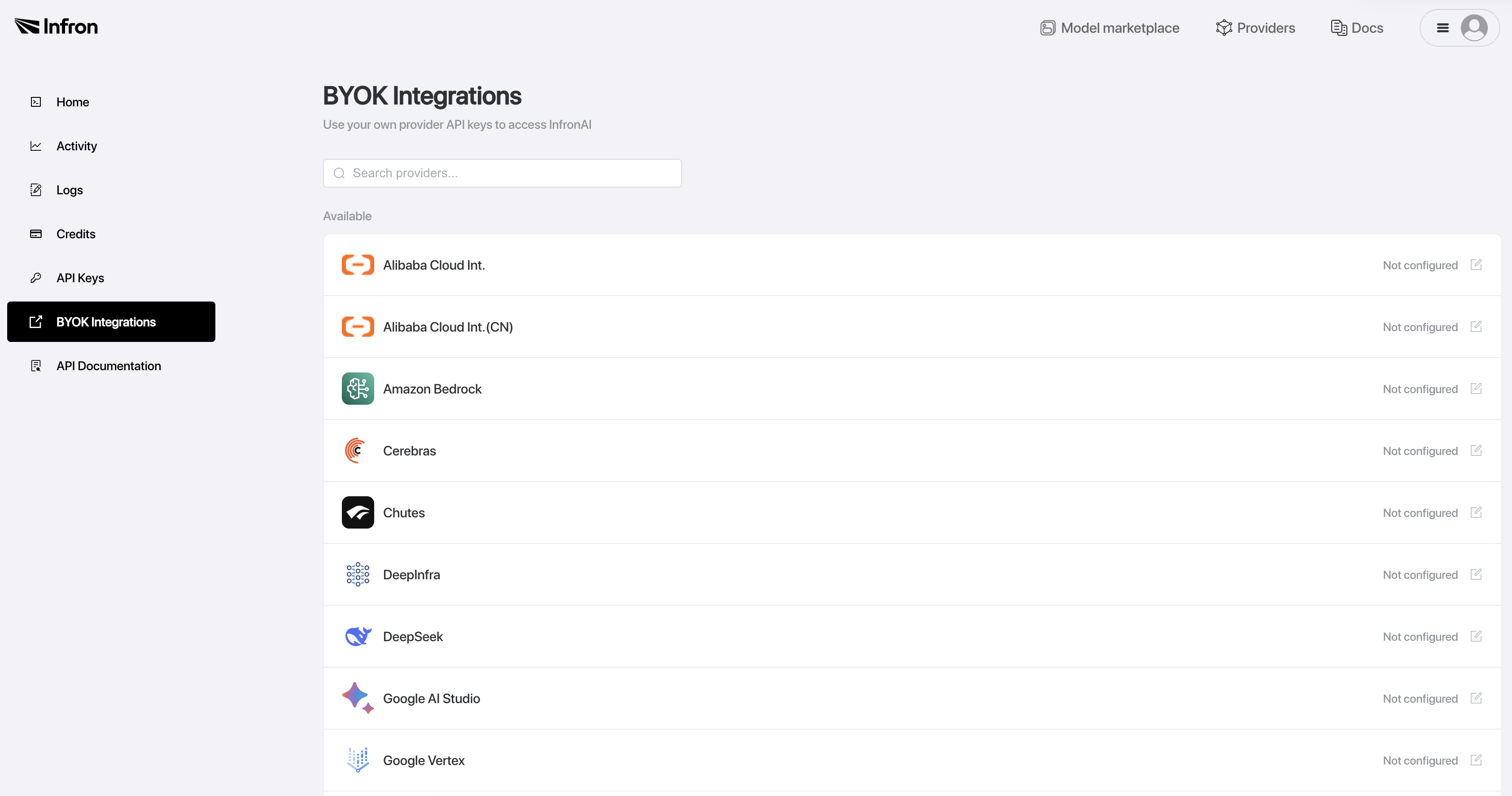
- Find your provider from the list and click the add icon.
- In the dialog that appears, enter the credentials you retrieved from the provider.
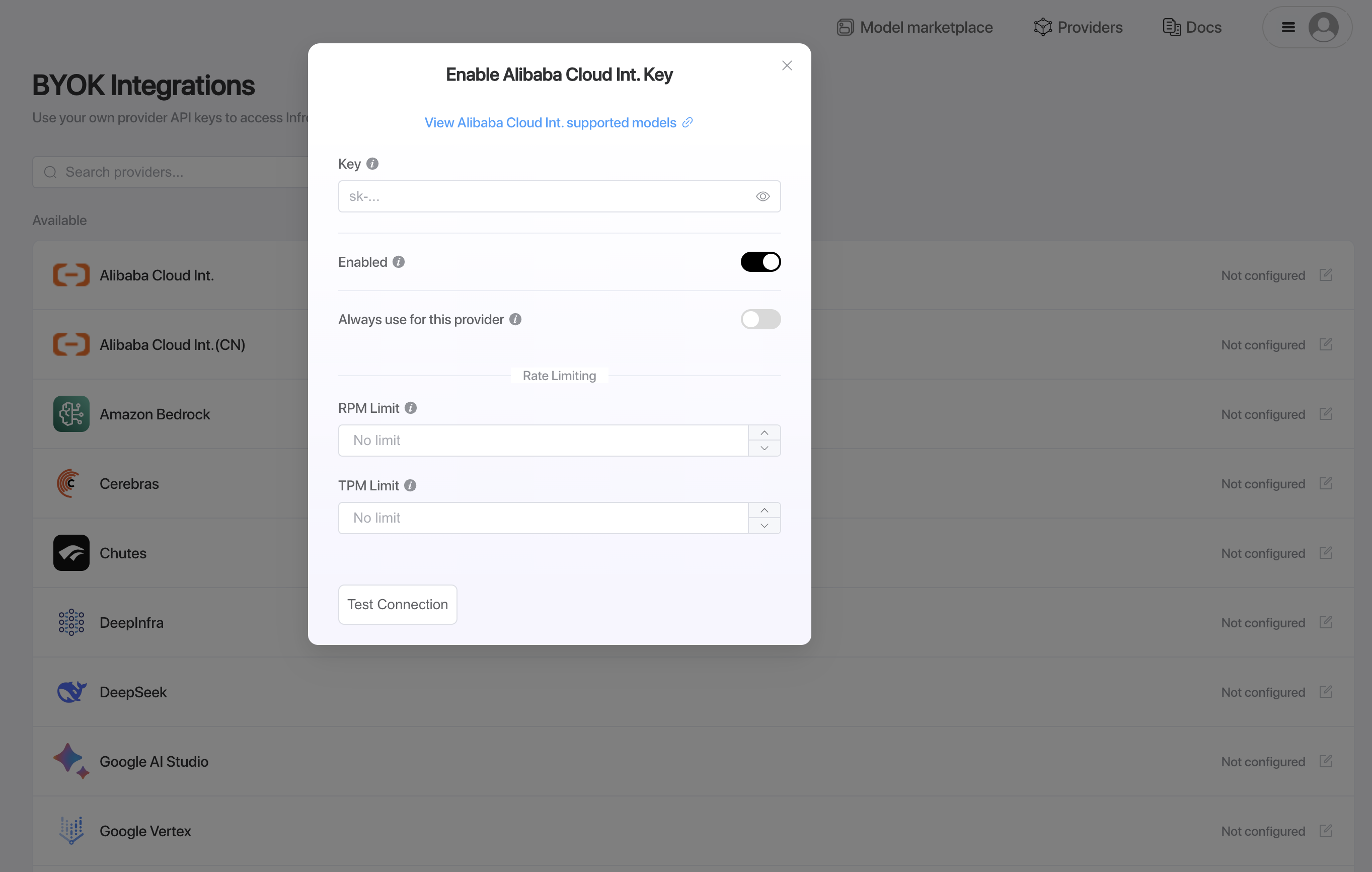
- Ensure that the Enabled toggle is turned on so that the credentials are active.
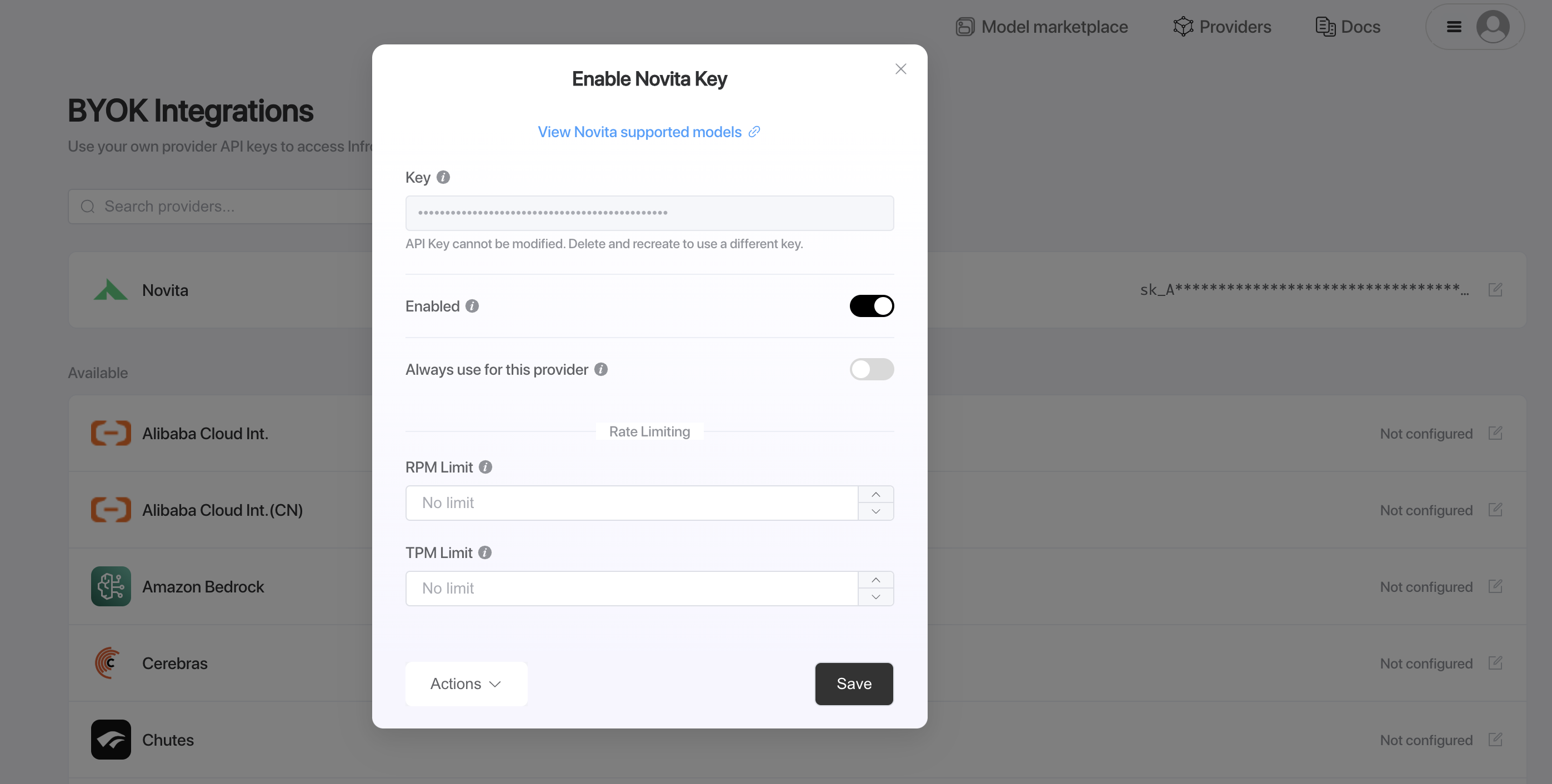
- Click Test Connection to validate and add your credentials.
This will execute a small test query using a cheap and fast model from the selected provider to verify the health of your credentials. The test is designed to be minimal and cost-effective while ensuring your authentication is working properly.

Step
Use the credentials in your real-world requests
Once you add credentials, Siraya AI automatically includes them in your requests. You can now use these credentials to authenticate your requests.
Step
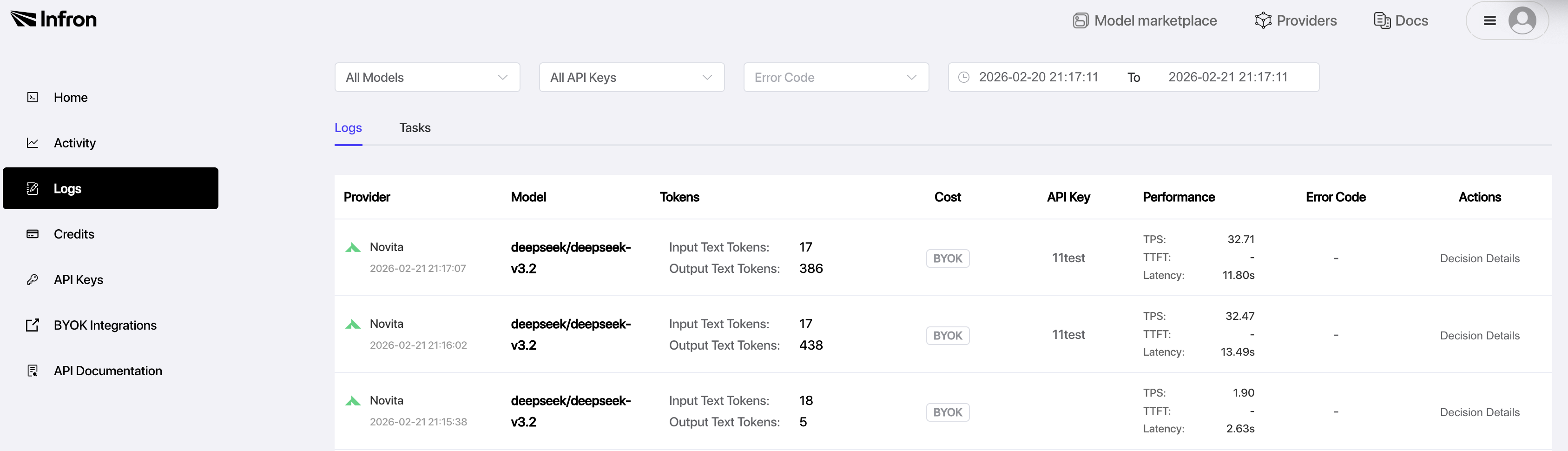
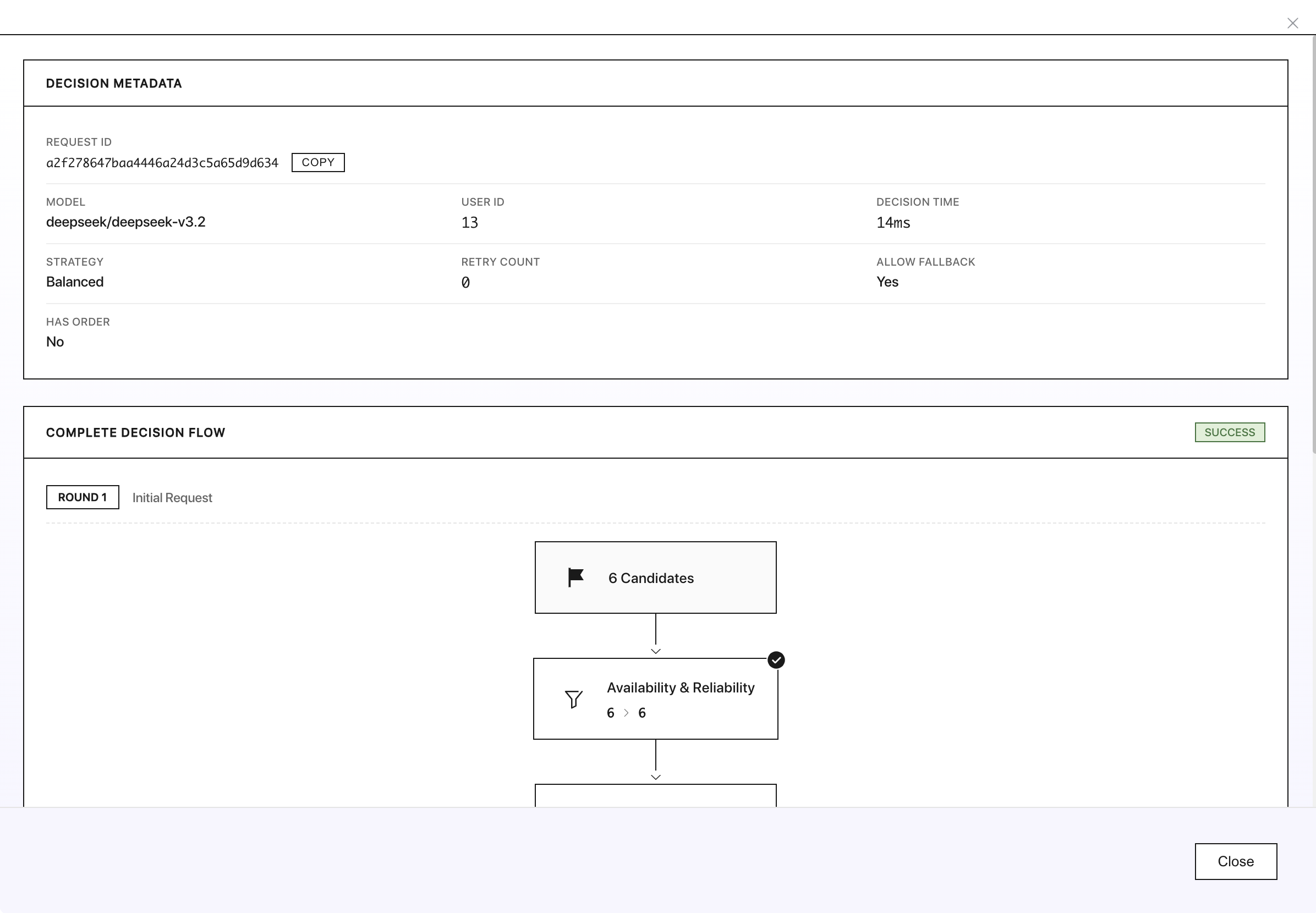
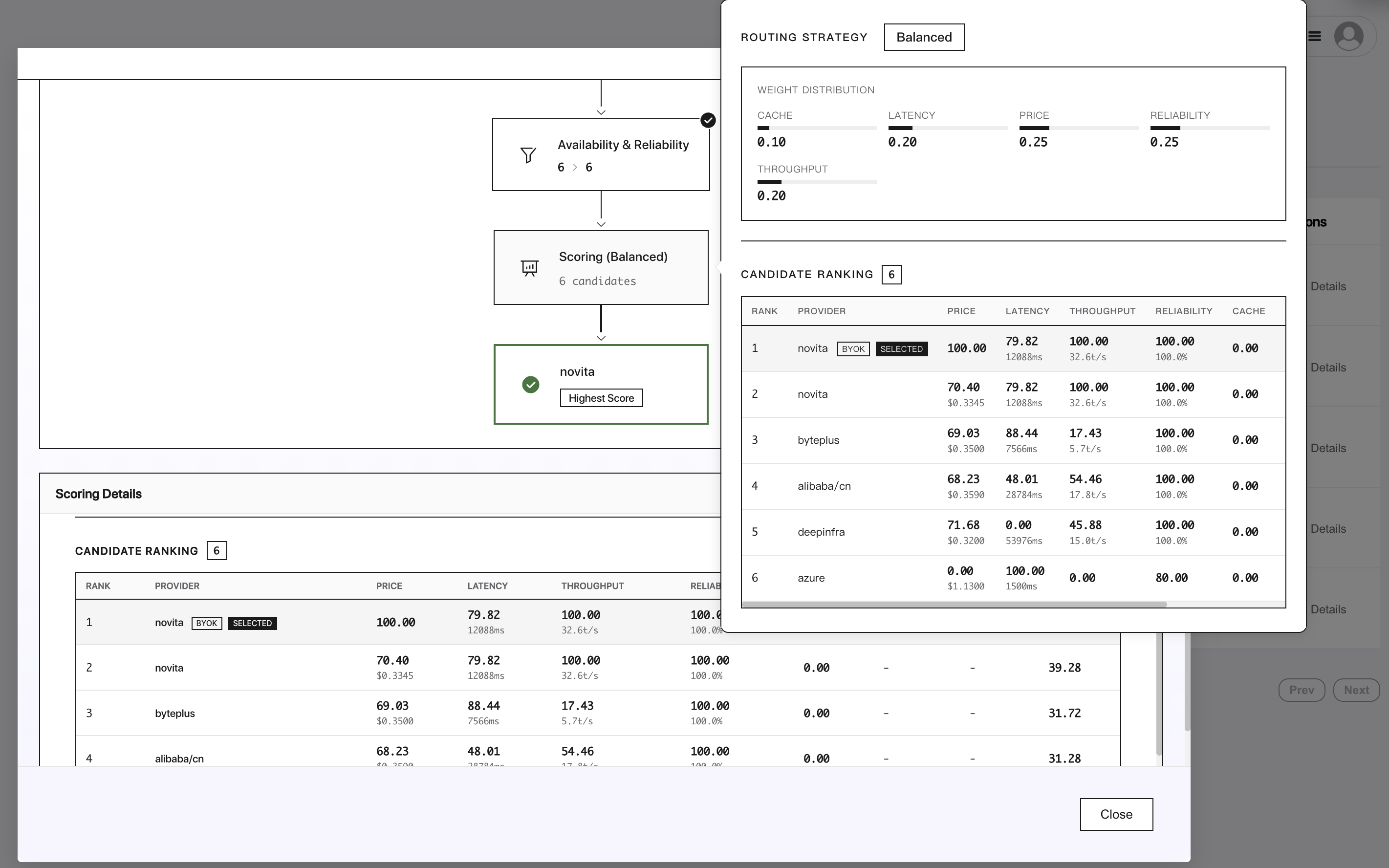
Check the byok logs
Go to the logs page in your dashboard.
BYOK with Provider Ordering
When you combine BYOK keys with provider ordering, Siraya AI always prioritizes BYOK endpoints first, regardless of where that provider appears in your specified order. After all BYOK endpoints are exhausted, Siraya AI falls back to shared capacity in the order you specified.
This means BYOK keys effectively override your provider ordering for the initial routing attempts. For example, if you have BYOK keys for Amazon Bedrock, Google Vertex AI, and Anthropic, and you send a request with:
{
  "provider": {
    "allow_fallbacks": true,
    "order": ["amazon-bedrock", "google-vertex", "anthropic"]
  }
}
The routing order will be:
Routing Flow:
  ┌────────────────────────────┐
  │ Amazon Bedrock (BYOK)      │
  └──────────────┬─────────────┘
                 │
  ┌──────────────▼─────────────┐
  │ Google Vertex AI (BYOK)    │
  └──────────────┬─────────────┘
                 │
  ┌──────────────▼─────────────┐
  │ Anthropic (BYOK)           │
  └──────────────┬─────────────┘
                 │
  ┌──────────────▼─────────────┐
  │ Amazon Bedrock (Siraya AI’s shared capacity)    │
  └──────────────┬─────────────┘
                 │
  ┌──────────────▼─────────────┐
  │ Google Vertex AI (Siraya AI’s shared capacity)  │
  └──────────────┬─────────────┘
                 │
  ┌──────────────▼─────────────┐
  │ Anthropic (Siraya AI’s shared capacity)         │
  └────────────────────────────┘
Partial BYOK with Provider Ordering
If you only have a BYOK key for some of the providers in your order, the BYOK provider is still tried first. For example, if you specify
but only have a BYOK key for Google Vertex AI.
The routing order will be:
Routing Flow:
  ┌──────────────▼─────────────┐
  │ Google Vertex AI (BYOK)    │
  └──────────────┬─────────────┘
                 │
  ┌──────────────▼─────────────┐
  │ Amazon Bedrock (Siraya AI’s shared capacity)    │
  └──────────────┬─────────────┘
                 │
  ┌──────────────▼─────────────┐
  │ Google Vertex AI (Siraya AI’s shared capacity)  │
  └───────────────────────────┘
Note that even though Amazon Bedrock is listed first in the order array, the Google Vertex AI BYOK endpoint takes priority.
AWS Bedrock API Keys
To use Amazon Bedrock with Siraya AI, you can authenticate using either Bedrock API keys or traditional AWS credentials.
Option 1: Bedrock API Keys (Recommended)
Amazon Bedrock API keys provide a simpler authentication method. Simply provide your Bedrock API key as a string:
Note: Bedrock API keys are tied to a specific AWS region and cannot be used to change regions. If you need to use models in different regions, use the AWS credentials option below.
You can generate Bedrock API keys in the AWS Management Console. Learn more in the Amazon Bedrock API keys documentation.
Option 2: AWS Credentials
Alternatively, you can use traditional AWS credentials in JSON format. This option allows you to specify the region and provides more flexibility:
{
  "accessKeyId": "your-aws-access-key-id",
  "secretAccessKey": "your-aws-secret-access-key",
  "region": "your-aws-region"
}
You can find these values in your AWS account:
- accessKeyId: This is your AWS Access Key ID. You can create or find your access keys in the AWS Management Console under “Security Credentials” in your AWS account.
- secretAccessKey: This is your AWS Secret Access Key, which is provided when you create an access key.
- region: The AWS region where your Amazon Bedrock models are deployed (e.g., “us-east-1”, “us-west-2”).
Make sure your AWS IAM user or role has the necessary permissions to access Amazon Bedrock services. At minimum, you’ll need permissions for:
bedrock:InvokeModelbedrock:InvokeModelWithResponseStream(for streaming responses)
Example IAM policy:
{
  "Version": "2012-10-17",
  "Statement": [
    {

      "Effect": "Allow",
      "Action": [
        "bedrock:InvokeModel",
        "bedrock:InvokeModelWithResponseStream"
      ],
      "Resource": "*"
    }
  ]
}
For enhanced security, we recommend creating dedicated IAM users with limited permissions specifically for use with Siraya AI.
Learn more in the AWS Bedrock Getting Started with the API documentation, IAM Permissions Setup guide, or the AWS Bedrock API Reference.
Google Vertex API Keys
To use Google Vertex AI with Siraya AI, you’ll need to provide your Google Cloud service account key in JSON format. The service account key should include all standard Google Cloud service account fields, with an optional region field for specifying the deployment region.
{
      "type": "service_account",
      "project_id": "your-project-id",
      "private_key_id": "your-private-key-id",
      "private_key": "-----BEGIN PRIVATE KEY-----\n...\n-----END PRIVATE KEY-----\n",
      "client_email": "your-service-account@your-project.iam.gserviceaccount.com",
      "client_id": "your-client-id",
      "auth_uri": "https://accounts.google.com/o/oauth2/auth",
      "token_uri": "https://oauth2.googleapis.com/token",
      "auth_provider_x509_cert_url": "https://www.googleapis.com/oauth2/v1/certs",
      "client_x509_cert_url": "https://www.googleapis.com/robot/v1/metadata/x509/your-service-account@your-project.iam.gserviceaccount.com",
      "universe_domain": "googleapis.com",
      "region": "global"
  }
You can find these values in your Google Cloud Console:
- Service Account Key: Navigate to the Google Cloud Console, go to “IAM & Admin” > “Service Accounts”, select your service account, and create/download a JSON key.
- region (optional): Specify the region for your Vertex AI deployment. Use
"global"to allow requests to run in any available region, or specify a specific region like"us-central1"or"europe-west1".
Make sure your service account has the necessary permissions to access Vertex AI services:
aiplatform.endpoints.predictaiplatform.endpoints.streamingPredict(for streaming responses)
Example IAM policy:
{
  "bindings": [
    {
      "role": "roles/aiplatform.user",
      "members": [
        "serviceAccount:your-service-account@your-project.iam.gserviceaccount.com"
      ]
    }
  ]
}
Learn more in the Google Cloud Vertex AI documentation and Service Account setup guide.